Set your Home location and save more places
Home is the place the Tonight forecast and your alerts are for. Free holds one place; Chaser holds ten.
Everything on the Now page is worked out for one place: whether it's dark there, how cloudy it is, and how strong the aurora needs to be to reach it. That place is your Home.
Set Home
On the Now page, tap Set location on the Tonight card. Find a place opens. Either:
- tap Use my current location and allow location access, or
- type a town in Search a town, tap Search and pick the right result.
Then choose Save as Home. Your alerts are for this place too.
Switch between places
Tap the place name at the top of the Tonight card. Saved locations lists your places; tap one to see tonight's forecast there. Your sky, further down, always shows the same place, and its Change location button opens the same list.
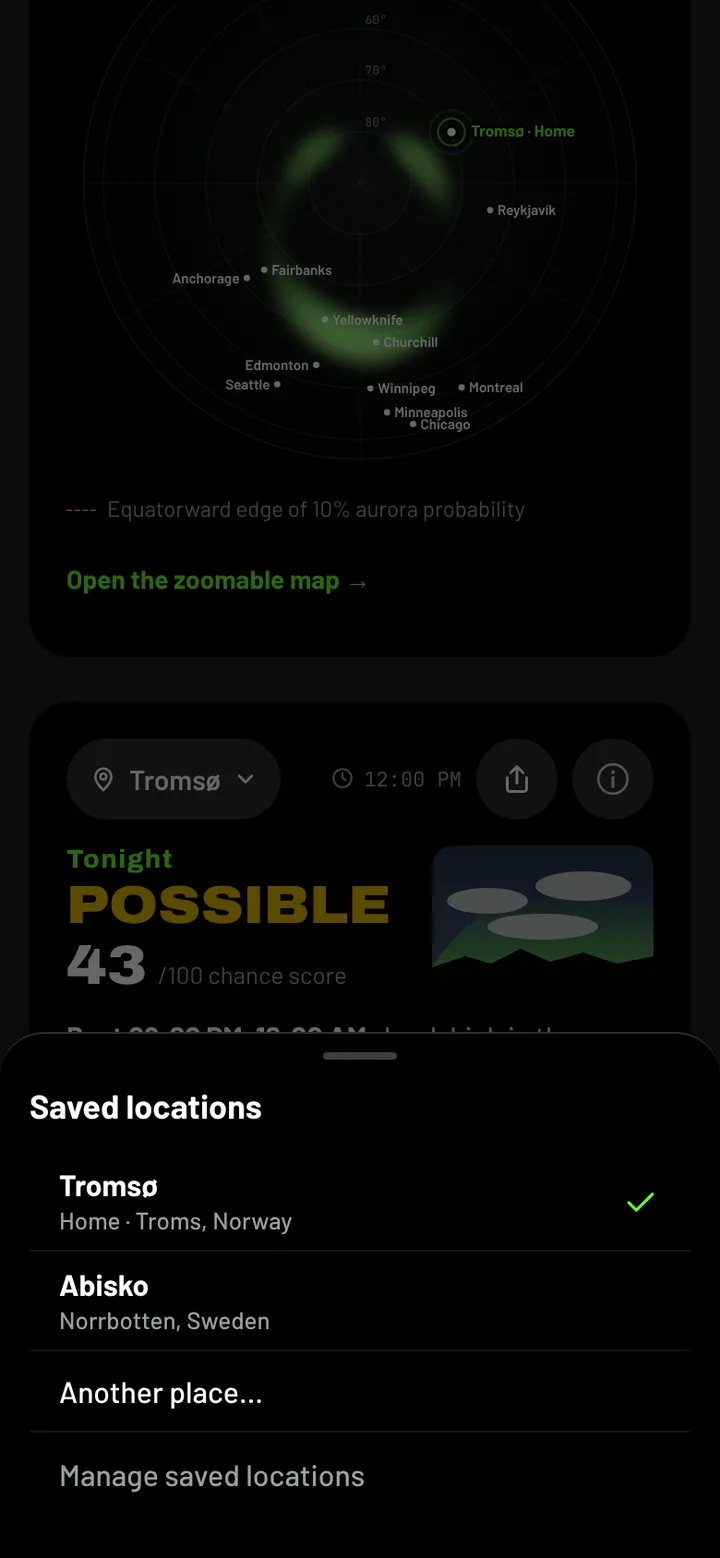
Look at another place
In the list, tap Another place… and find it the same way. Then choose:
- Show this place to see its forecast now without saving it. Back to Home in Your sky returns to Home.
- Save as Home to make it your Home. On the Free plan, this replaces your current Home.
Manage your places
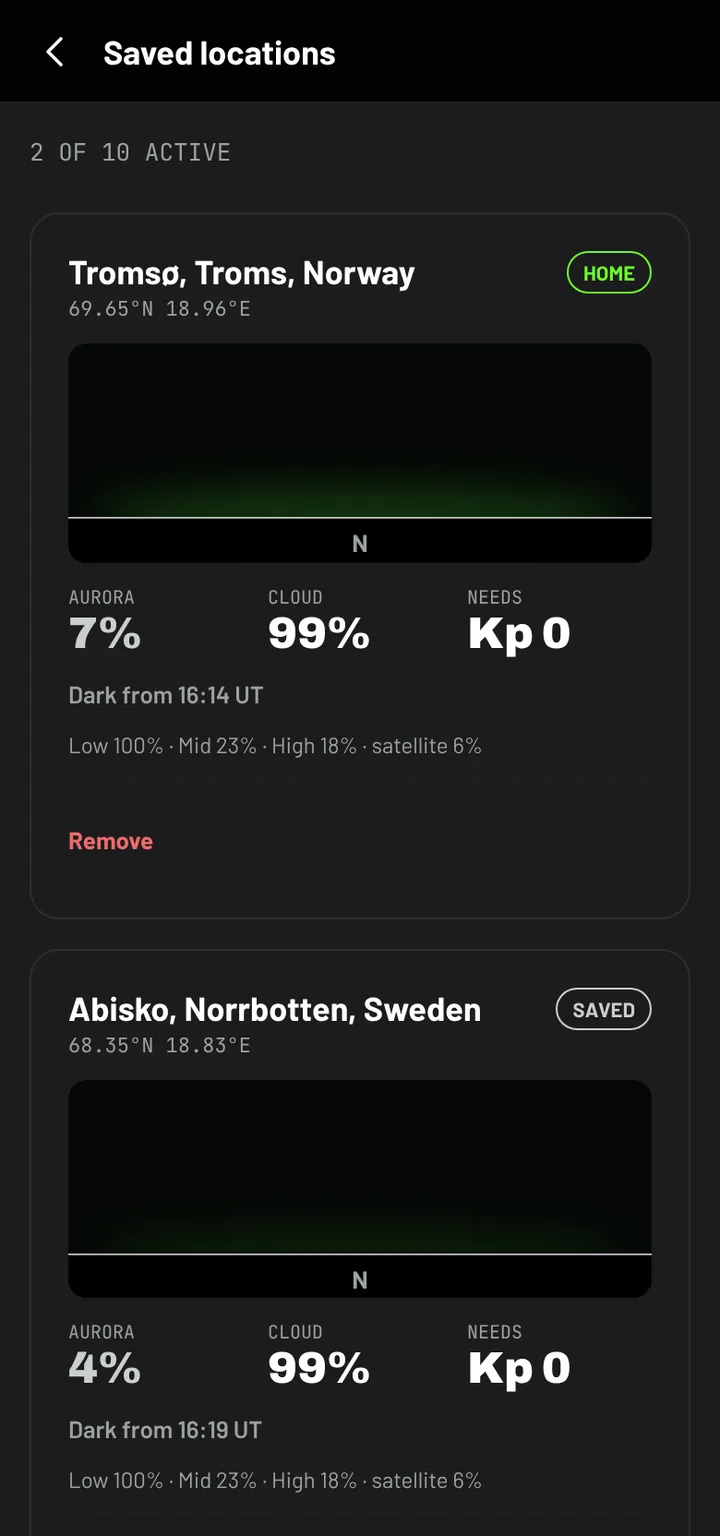
Tap Manage saved locations at the bottom of the list, or on a phone open You → Saved locations. On a computer, open Dashboard → Locations. Each place shows its sky right now. From here you can:
- Add a location,
- Make home to move Home to another saved place,
- Remove a place.
How many places
The Free plan holds 1 place, so saving a new one replaces your Home. Chaser holds 10, and its alerts cover all of them.
If you're signed out, places are kept in this browser only. Sign in to keep them in your account.